Table of Contents
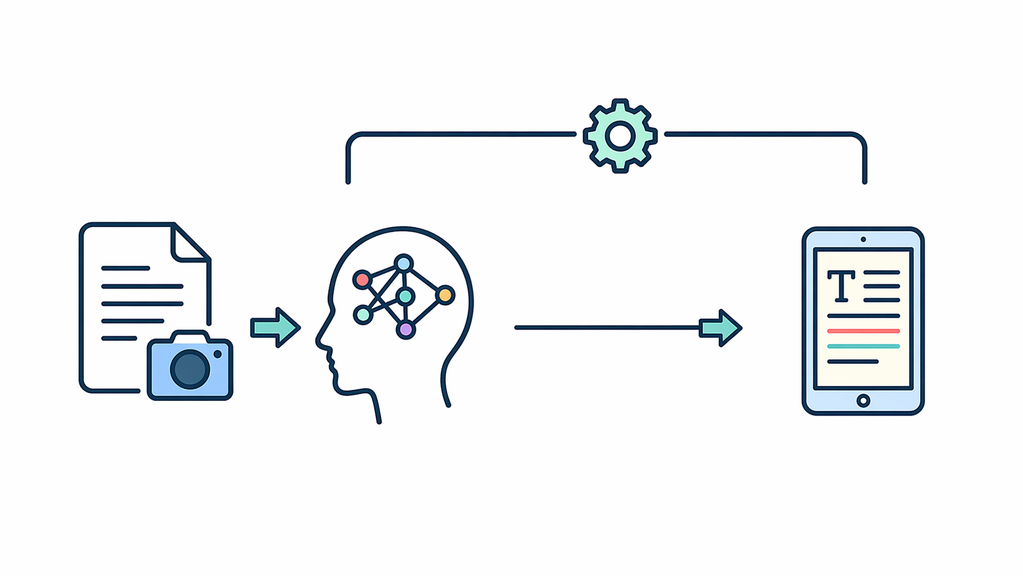
Image to Text
This module converts uploaded images into structured text, supporting platform growth as a scalable web system by making image-based information searchable, reusable, and easier to manage.
Written date: 11/03/2025 22:37:34Digital Suite
Introduction
This Image-to-Text (OCR) microservice is engineered for the HUST Media ecosystem. Designed for scalable platforms, it extracts structured text from unstructured image data. As a core pipeline component, it automates document processing and indexing for production environments.
Practical Notes
Leveraging advanced OCR models on a dedicated Flask AI server, the module uses standardized server-side structures (e.g., <Project_Path>/python/module_tts) and environment-based configurations. This setup serves as a blueprint for integrating AI-driven analysis into high-traffic, scalable architectures.
Who should use this module?
Developers integrating automated OCR capabilities into high-traffic document processing pipelines.
Architects seeking a production-ready Image-to-Text microservice for scalable data verification.
Engineering teams optimizing unstructured image data extraction with stable, low-latency AI models.
How My Image-to-Text Module Works in a Rule-Based OCR Workflow
Short description for the article card
This article explains how my Image-to-Text workflow extracts text from screenshots through a local OCR pipeline, from screen capture and region detection to text extraction and post-checking. It also outlines the OCR stack, processing rules, and practical limits.
Article body
My current Image-to-Text workflow is built around a local OCR pipeline rather than a general upload-and-read service. In the repo under <Project_Path>/python/module_tts/, the working path uses local Tesseract OCR, while PaddleOCR and EasyOCR only appear as external service references, not as full OCR logic in this codebase.
The flow starts with a Selenium script that opens the target chat interface and saves a screenshot as screenshot.png. A second script then processes that image with pytesseract, using the fixed Tesseract binary at /opt/hustmedia/application/Tesseract-OCR/tesseract.exe. Before OCR runs, the image is cropped to the expected chat area, then refined by detecting a gray edge region to isolate the relevant message area.
The pipeline detects candidate text boxes using contour detection on an Otsu-thresholded image. The boxes are merged by row and horizontal spacing, then filtered with rules for gray regions, uniform backgrounds, and a LINE_THRESHOLD step that removes noisy rows. Instead of reading the whole image, the script keeps only the lowest valid box, expands it with PAD = 5, and runs OCR on that region with pytesseract.image_to_string(..., --psm 7). The extracted text and coordinates are then written to center.json.
This means the current module is not a broad OCR engine for all image types. It is a rule-based OCR workflow designed for a specific chat-style UI, where the goal is to capture the final relevant text line rather than read the full screenshot. That makes it practical for controlled verification tasks, but also dependent on layout consistency.
After OCR, the workflow reads center.json, applies a computer-vision check for a red heart icon, and when needed, sends the extracted text into a lightweight classification step before writing the final check_content result back to JSON. This gives the module both an extraction layer and a validation layer.
At the current stage, the main Flask AI server does not expose a direct public /ocr or /image2text endpoint. So this module should be understood as a working internal OCR component with specific UI-oriented logic, not yet as a universal OCR API.
Technical configuration snapshot
CONFIG
OCR stack: local Tesseract OCR
Screenshot source: Selenium capture to screenshot.png
Region output: chat_region.png
Threshold method: Otsu
OCR mode: --psm 7
Output file: center.json
Python wrapper: pytesseract
Tesseract binary: /opt/hustmedia/application/Tesseract-OCR/tesseract.exe
OCR target: lowest valid filtered text box
Padding value: PAD = 5
Extra validation: CV rule check + content classification
Current limitation: no direct public OCR endpoint
Practical Use
Module Usage Guide
After the technical overview above, this guide explains how to use the Image-to-Text module with screenshots, receipts, forms, or simple document images.
1.Upload a PNG or JPG image that contains clear, readable text.
2.Click Extract Text to process the image through the OCR workflow.
3.Review the extracted result for missing words, numbers, and formatting.
4.Use clean screenshots or document images for more consistent output.
Use the section below to experience the module directly. Start with a simple image, then adjust the input based on your review, documentation, or verification workflow.
Use the steps below to quickly test this module with your real content.
Image Text Extraction
Best for screenshots, receipts, forms, and simple documents. Please upload only content you are authorized to use.
Allowed formats: PNG, JPG. File size limit: up to 20MB.
No image selected
Sample Inputs
Input: Screenshot of a receipt. Output: Readable text for checking details.
Input: Image of instructions. Output: Editable text for later updates.
Closing Notes
Reader Value
Readers can use this module pattern to turn screenshots, receipts, and image-based records into a more structured text workflow for review, documentation, and verification tasks. In real projects, that helps reduce manual typing, keep extraction handling more consistent, and support stable operation across image-based content flows.
Conclusion
This Image-to-Text module combines a controlled OCR path, rule-based region handling, and post-check processing into one maintainable service layer. It remains a practical internal OCR component aligned with the platform's broader system integration and stable operation model.
By Tín Nguyễn Đăng • Written date: 11/03/2025 22:37:34
Was this content helpful to you?